Black Ops 3 Lobby Not Joinable Causes And Possible Fixes
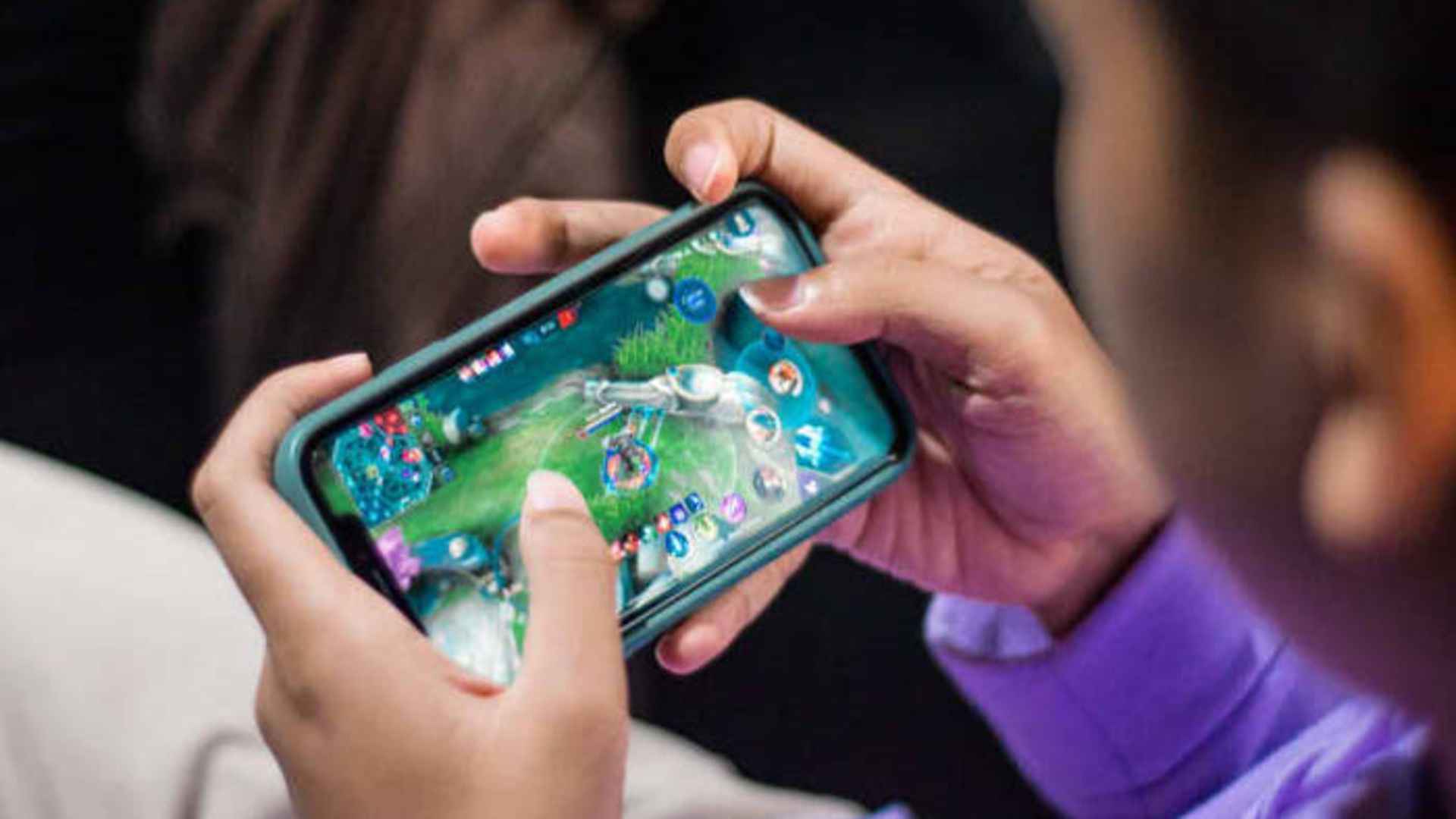
Call of Duty: Black Ops 3 remains a beloved title for multiplayer and custom zombies enthusiasts looking to squad up with friends. However, many players frequently encounter a frustrating error stating that the lobby is not joinable when attempting to connect. Understanding the underlying network and software issues can help you quickly resolve these connectivity roadblocks.
Understanding the Strict NAT Type Obstacle
One of the most common reasons behind this multiplayer connection failure relates directly to your local network security configuration. If your system restriction is set to a Strict or Moderate NAT type, the game will block incoming connection requests from other players. Achieving an Open NAT status is generally considered the best way to ensure seamless lobby matchmaking.
When your console or computer is hidden behind an overly protective firewall, it cannot establish a direct handshake with the host server. This issue is incredibly prominent for gamers living on university campuses or using restrictive internet service providers. Transitioning your settings to allow open data sharing will immediately alleviate these multiplayer party failures.
Resolving Friend List and Session Glitches
Sometimes the root cause of a broken lobby connection is a simple synchronization error within the platform client itself. Bugged active sessions can make your profile appear offline or unreachable even when you are actively browsing the main menu. A quick client restart or temporary profile sign-out often forces the game servers to refresh your connection status.
If standard invitations continue to fail, players have found success by completely removing and re-adding each other on their respective friend lists. This action forces the system to rebuild the internal matchmaking bridge between both accounts from scratch. Additionally, shifting your party privacy configuration to open inside the in-game settings menu can allow friends to manually join your active session.
Configuring Router Settings and UPnP Options
For a more permanent remedy, adjusting your home routing equipment settings can provide an immediate breakthrough for persistent errors. Enabling Universal Plug and Play, commonly known as UPnP, allows your gaming hardware to automatically request the necessary data channels. Most modern routers include this feature within their advanced management dashboards for easy toggling.
If automatic configuration fails to deliver results, manually establishing port forwarding rules for your specific gaming platform is highly effective. Directing dedicated gaming traffic through designated TCP and UDP ports prevents your router from accidentally filtering out essential multiplayer packets. Taking the time to properly align these local network variables ensures long-term stability across all matchmaking activities.
Verifying Game Files and Network Discrepancies
Data corruption within the local installation files can also trigger ambiguous connection errors during online matchmaking attempts. Missing patches or slight version mismatches between group members will prevent the network from launching a shared lobby environment. Utilizing your platform client to verify the integrity of the game files will automatically repair any damaged assets.
Finally, experiencing sudden server drops during high-round matches indicates a broader stability problem with localized regional nodes. Checking official status pages can confirm whether the developers are currently performing rolling maintenance on the network grid. If the main servers are fully functional, power cycling your local hardware remains a reliable method to clear residual network cache data.